Thinking about starting an online store with WooCommerce but not sure where to begin?
You are in the right place.
WooCommerce is the world’s most popular ecommerce plugin — powering over 30% of all online stores globally. And the best part? It runs on WordPress, which means you have full control over your store, your data, and your costs.
In this complete beginner guide, we walk you through the entire WooCommerce store setup process in 2026 — from choosing your hosting to publishing your first product.
Let’s get started.
1. What is WooCommerce?
WooCommerce is a free e-commerce plugin for WordPress. It turns any WordPress website into a fully functional online store.
With WooCommerce you can:
- Sell physical products, digital downloads, or services
- Accept payments via PayPal, Stripe, bank transfer, and more
- Manage orders, inventory, and shipping from one dashboard
- Add unlimited products with no monthly listing fees
- Customize your store with thousands of themes and plugins
WooCommerce vs Shopify — Quick Comparison
Feature | WooCommerce | Shopify |
Monthly Cost | Hosting only (~$3–10/mo) | $39+/month |
Setup | Requires WordPress | Hosted — easier start |
Customization | Unlimited | Limited |
Transaction Fees | None | 0.5–2% (without Shopify Pay) |
Ownership | You own everything | Shopify owns platform |
Best For | Full control, lower cost | Beginners, quick launch |
🔗 Read our full Shopify vs WordPress comparison here.
2. What You Need Before Setting Up WooCommerce
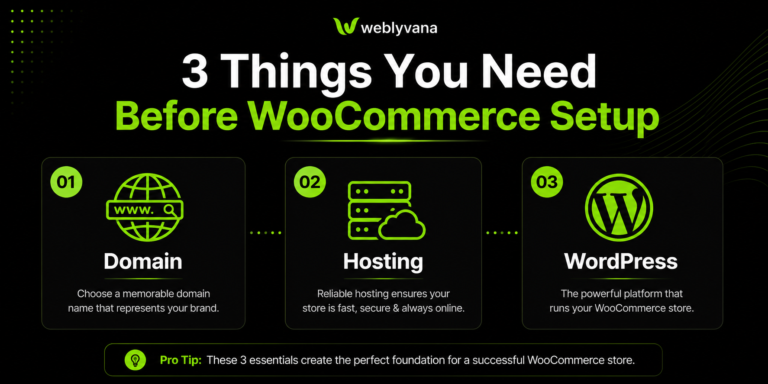
Before you start, make sure you have these 3 things ready:
A. Domain Name
Your domain is your store’s address — for example, yourstore.com.
We recommend buying your domain from Hostinger — it is affordable, reliable, and easy to manage.
🔗 Get your domain from Hostinger here — starting from $1.99/year.
B. Web Hosting
WooCommerce needs WordPress hosting. Not all hosting is equal — for a WooCommerce store, you need:
- At least 2GB RAM
- PHP 7.4 or higher
- SSL certificate (for secure payments)
- Good uptime (99.9%+)
Hostinger’s Business or WooCommerce hosting plan covers all of these — and it is one of the most affordable options available.
🔗 Get Hostinger WooCommerce hosting here.
C. WordPress Installed
WooCommerce runs on WordPress. Most hosting providers, including Hostinger, offer 1-click WordPress installation — so this takes less than 2 minutes.
3. How to Install WooCommerce — Step by Step
Once you have WordPress installed, setting up WooCommerce takes less than 10 minutes.
- Log in to your WordPress dashboard
- Go to Plugins → Add New
- Search for “WooCommerce”
- Click Install Now → then Activate
- The WooCommerce Setup Wizard will open automatically
- Follow the wizard — enter your store location, currency, and product type
- Click Continue until setup is complete
💡 Pro Tip: Always install WooCommerce on a fresh WordPress installation. Installing it on an existing website with lots of content can cause conflicts.
4. Choosing the Right WooCommerce Theme
Your theme controls how your store looks. Here are the best options for beginners in 2026:
Theme | Cost | Best For |
Storefront (Official) | Free | Beginners — built by WooCommerce |
Astra | Free / $59 Pro | Fast loading, highly customizable |
OceanWP | Free / $43 Pro | Great design options |
Flatsome | $59 one-time | Fashion and product stores |
Divi | $89/year | Drag and drop, very flexible |
Our recommendation: Start with Astra free version — it is lightweight, fast, and works perfectly with WooCommerce and Elementor.
💡 Pro Tip: Avoid installing multiple themes. Install only one and stick with it. Each theme switch can break your design.
5. Essential WooCommerce Settings to Configure
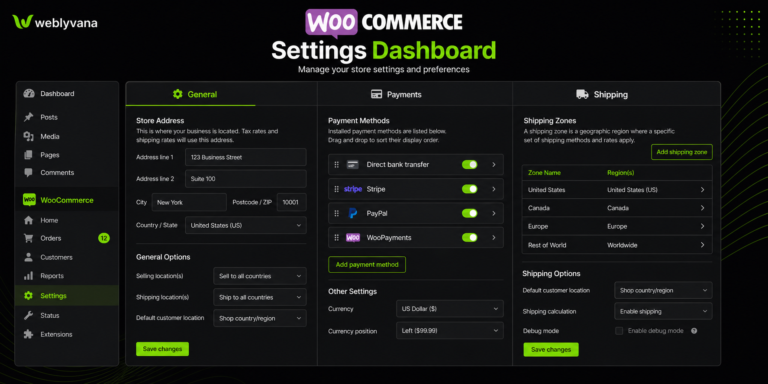
After installation, go to WooCommerce → Settings and configure these:
A. General Settings
- Store Address — enter your business address
- Selling Locations — select which countries you sell to
- Currency — set your store currency (USD, GBP, AED etc.)
- Currency Position — before or after the amount
B. Payment Gateways
This is one of the most important settings. WooCommerce supports:
- PayPal — easiest to set up, works worldwide
- Stripe — best for credit/debit card payments
- Bank Transfer — good for local clients
- Cash on Delivery — for local physical delivery
C. Shipping Settings
- Add shipping zones — local, national, international
- Set flat rate, free shipping, or calculated shipping
- Add shipping classes for different product types
D. Tax Settings
- Enable taxes if required in your country
- Set standard tax rate based on your location
6. Adding Your First Product
Now the exciting part — adding your first product!
Go to Products → Add New and fill in:
- Product Name — clear and keyword-rich title
- Product Description — detailed description of your product
- Product Image — high-quality photo (at least 800x800px)
- Price — regular price and sale price if applicable
- Product Type — Simple, Variable, Grouped, or External
- Inventory — enable stock management, set quantity
- Shipping — weight and dimensions for shipping calculation
- Category and Tags — helps customers find products
- Click Publish
💡 Pro Tip: Use high-quality product images. Poor images are the number one reason customers do not buy online. If possible, show products from multiple angles.
7. Must-Have WooCommerce Plugins for Beginners
These free plugins will make your WooCommerce store much more powerful:
Plugin | Purpose | Cost |
Yoast SEO / Rank Math | SEO optimization for products | Free |
WooCommerce Stripe Gateway | Accept card payments | Free |
YITH WooCommerce Wishlist | Let customers save products | Free |
Smush | Compress product images | Free |
WooCommerce PDF Invoices | Auto-generate invoices | Free |
Tidio Live Chat | Customer support chat | Free |
MailChimp for WooCommerce | Email marketing integration | Free |
💡 Pro Tip: Do NOT install too many plugins. Each plugin adds load time. Start with maximum 8-10 essential plugins only.
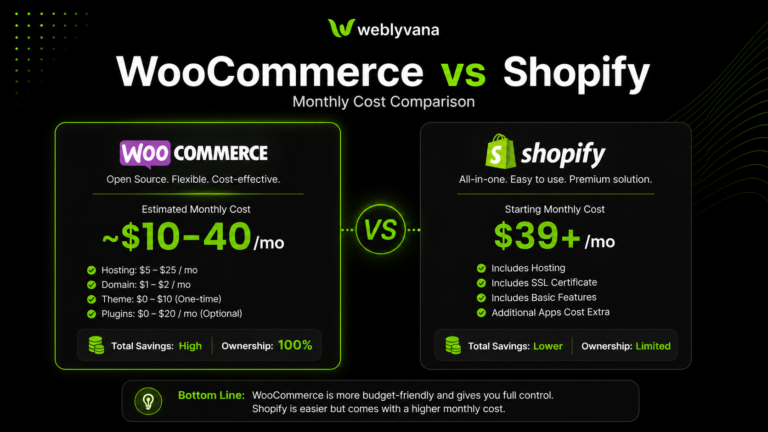
8. How Much Does WooCommerce Store Setup Cost in 2026?
One of the biggest advantages of WooCommerce is its low cost compared to Shopify.
Item | Cost |
WooCommerce Plugin | FREE |
Domain Name (Hostinger) | $2–15/year |
Hosting (Hostinger Business) | $3–8/month |
WordPress Theme | $0–59 one-time |
SSL Certificate | FREE (included with Hostinger) |
Essential Plugins | $0–30/month |
Professional Setup (Weblyvana) | $99–199 one-time |
TOTAL FIRST MONTH | ~$50–150 |
MONTHLY AFTER SETUP | ~$10–40/month |
WooCommerce is significantly cheaper than Shopify long-term — especially for stores with many products.
🔗 Get affordable WooCommerce hosting from Hostinger here.
🔗 See our WooCommerce Store Development packages — starting from $99.
9. Common WooCommerce Setup Mistakes to Avoid
These are the most common mistakes beginners make:
- Using cheap shared hosting — slow hosting kills conversions. Always use a quality host like Hostinger Business plan.
- Not installing SSL — Google marks non-SSL stores as “Not Secure”. Customers will not enter their card details.
- Installing too many plugins — each plugin slows your store. Keep it minimal.
- Poor product images — blurry or small images destroy trust instantly.
- No test order — always place a test order before launching to make sure payments work.
- Skipping mobile testing — over 70% of online shoppers use mobile. Test every page on phone.
Frequently Asked Questions
Is WooCommerce free?
Yes — WooCommerce plugin itself is completely free. You only pay for hosting, domain, and any premium themes or plugins you choose.
Can I use WooCommerce without coding knowledge?
Yes. With WordPress and a page builder like Elementor, you can build a complete WooCommerce store without writing a single line of code.
How long does WooCommerce setup take?
A basic WooCommerce store can be set up in 1-2 days. A professional custom store with all features typically takes 3-5 days with a developer.
Is WooCommerce good for beginners?
Yes, but it has a steeper learning curve than Shopify. If you want full control and lower costs, WooCommerce is the better choice long term.
Can I migrate from Shopify to WooCommerce?
Yes — products, orders, and customer data can be migrated from Shopify to WooCommerce using migration plugins or professional services.
Do I need a business registration to start a WooCommerce store?
No — you can start selling with a personal account. However, registering a business is recommended as your store grows for tax and legal purposes.
Conclusion
WooCommerce is one of the best platforms to build your online store in 2026 — especially if you want full control, lower monthly costs, and unlimited customization.
The setup process is straightforward, but getting every detail right from the start — hosting, payments, speed, and design — makes a huge difference in whether your store actually makes sales.
At Weblyvana, we specialize in professional WooCommerce store setup that is fast, secure, mobile-friendly, and ready to sell from day one — starting from just $99.
🔗 Get a free consultation for your WooCommerce store today.
🔗 Also considering Shopify? See our Shopify Store Setup packages.
🔗 Not sure which platform? Read Shopify vs WordPress — Which is Better?